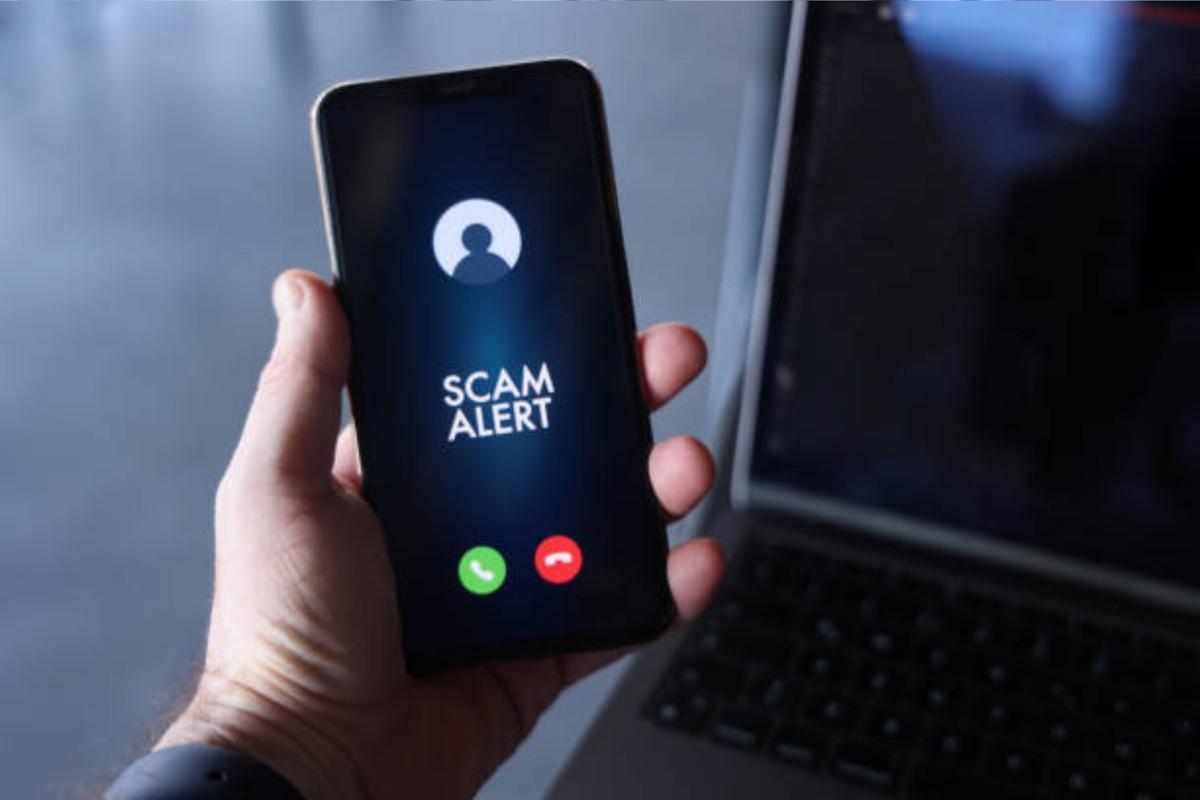
Fake Support Calls And Access
Fake technical support calls aim to move from a believable story to a controllable situation: the caller convinces you to install software, reveal account details, or grant remote access. The “access” part usually comes from a remote support tool, a screen-sharing session, or a script the caller claims is a security scan. In many incidents, the scammer’s goal is not to fix your computer but to reach passwords, payment information, or files stored in browsers and cloud-synced folders.
One common pattern starts with a warning that sounds technical enough to feel real: a pop-up about malware, a “security alert,” or a claim that your device is sending suspicious traffic. The caller then asks you to open an event viewer, download a remote tool, or visit a website that looks like a support portal. A detail that often shows up in real reports is the use of generic remote-access software names and a short instruction list that reduces your time to think—people follow steps quickly, which is exactly what the scam depends on.
What People Get Wrong
People often treat the call as a troubleshooting session, so they focus on whether the caller’s language sounds technical. Scammers can mimic technical terms without understanding your device, and they can still succeed by steering you toward actions that weaken your defenses. A second mistake is assuming that “remote support” means “safe support,” even when the session is initiated by an unknown caller.
These scams depend on supporting technologies that are legitimate in other contexts. Remote desktop tools (screen sharing, remote control, or file transfer) can be used by real support teams, but they also create a path for an attacker to observe your screen and interact with your system. Browser-based password managers and saved credentials add another dependency: if you type a password during the session, the attacker can capture it. Some callers also rely on caller ID spoofing and knowledge of your public information, which makes the opening claim feel grounded.
A third pain point is the “trust gap” created by urgency. When a caller says the issue will be fixed immediately, you may skip verification steps like hanging up and calling the official number on your device manufacturer’s website. That verification step is not about being paranoid; it’s about breaking the scam’s control loop. If you stay on the line, the scammer can respond to your doubts in real time, which is hard to resist when you’re already anxious.
How To Respond Safely
Stop The Session And Verify
End the call and close any remote access window you started. If a remote tool is already installed, do not keep using it “to finish the scan,” because that keeps the attacker’s path open. Then verify using an official channel: the number on the back of your device, the support page from the manufacturer’s domain, or your internet provider’s published help desk. If you already entered credentials, treat them as compromised and move to a password reset plan.
For Windows systems, check the installed programs list and running processes in Task Manager. For macOS, review Login Items and installed profiles in System Settings. A small aside from incident response notes: version numbers matter when you’re deciding whether something is new—on one case, the remote tool appeared with a first-run date that matched the call date, not the user’s normal install habits.
Contain Risk Without Guessing
Disconnect from the internet if you suspect active compromise. That reduces the chance of ongoing data exfiltration and stops some remote control channels. Then change passwords from a safer device if possible, such as a phone on a different network. Use a password manager or a trusted password reset flow rather than following links from the caller.
When you reset passwords, start with high-impact accounts: email, cloud storage, banking, and any account connected to those. Enable multi-factor authentication using an authenticator app or hardware key when available; SMS can be weaker if an attacker has account access. If you cannot access a safer device, reset passwords after disconnecting and before reconnecting, so you reduce the time the attacker can observe your actions.
Remove Access And Scan
After containment, remove the remote tool and any suspicious browser extensions. On Windows, review browser extension lists and uninstall unfamiliar software from Apps & Features. On Chrome and Edge, check Extensions and reset settings if the scam altered homepage or search behavior. On Firefox, review Add-ons and permissions.
Run reputable malware scans using tools you already trust or that are widely used in consumer security. Keep expectations realistic: a scan may not detect everything if the attacker used legitimate remote access and only captured credentials. If the scam involved a password entry, the “fix” is account recovery and credential rotation, not just malware removal.
One practical detail: if the caller asked you to install something “for the scan,” look for scheduled tasks and startup entries. Scammers sometimes use persistence mechanisms so the remote access returns after a reboot, and those entries can survive an uninstall if you only remove the visible app.
Document For Recovery And Support
Write down the call time, phone number shown on caller ID, the remote tool name, and any websites you visited. Save screenshots of error messages and any confirmation emails you received. This record helps support teams and banks verify what happened and speeds up account recovery.
If you suspect financial fraud, contact your bank or card issuer immediately. Ask about chargeback options and whether they can freeze transactions. If you shared personal data beyond passwords, consider identity monitoring services, but evaluate them like any other subscription: check what data sources they use and what actions they trigger.
Case Examples With Realistic Outcomes
Example 1: Remote Tool Installed
A reader receives a call claiming their computer is infected. The caller instructs them to download a remote support tool and grant “full control” while a “scan” runs. During the session, the reader is asked to log into email to “verify security settings,” and they enter credentials. After the call ends, the reader notices new sign-in alerts and a password reset request.
The safe response in this scenario is to disconnect the computer, reset the email password from a phone on a different network, and revoke active sessions in the email provider’s security settings. The reader then uninstalls the remote tool, checks browser extensions, and runs a malware scan. The likely outcome is not instant cleanup; the main risk is account takeover, so the recovery focuses on credential rotation and session revocation.
Example 2: Fake “Security Portal” Link
Another reader gets a call that references a pop-up on their screen. The caller asks them to open a “security portal” link to view logs, then prompts them to install a browser plugin. The reader follows the steps, and the plugin changes search results and adds a new extension.
In this scenario, the reader can often recover by removing the extension, resetting browser settings, and clearing suspicious site permissions. They should also check saved passwords and autofill entries for changes. If the plugin requested access to read browsing data, the reader should treat it as a privacy risk and review account activity. The outcome depends on whether any credentials were entered while the plugin was active.
Decision Checklist For Next Steps
| Situation | Immediate Action | Account Focus | Device Focus |
|---|---|---|---|
| Remote tool started | End session, disconnect internet | Reset email first; revoke sessions | Uninstall tool; check startup items |
| Credentials entered | Reset passwords from safer device | Enable MFA; review login history | Scan and remove extensions |
| Only a link visited | Close tabs; clear downloads | Check for password prompts | Run malware scan; review browser changes |
| Payment details shared | Contact bank/card issuer | Freeze or dispute charges | Change passwords; scan for persistence |
Use this checklist to decide where to spend time first. If credentials were entered, account recovery usually outranks device cleanup because the attacker can act from the account even after the computer is disinfected.
Common Mistakes That Extend Harm
One frequent mistake is continuing the “support” after you notice inconsistencies, like a caller refusing to identify their company or asking for payment in gift cards. Another mistake is installing additional tools at the caller’s direction, which can add more software than the original problem. People also forget to check security settings after a password reset, such as active sessions and recovery email addresses, which can remain attacker-controlled.
Some readers run scans but skip extension review, even though browser plugins can change what you see and capture data you type. Others reset passwords but leave multi-factor authentication turned off, which reduces protection if the attacker already has a session token. A mild frustration that shows up in help desk logs: users often remember to change the password but not to revoke sessions, so the attacker keeps access.
Finally, avoid paying for “guaranteed cleanup” from the same caller. Payment can be demanded before any verifiable work, and it can also signal to scammers that the victim will comply with future requests. If you need professional help, choose a known local service or a reputable remote support channel you initiate yourself.
FAQ
How can I tell a fake support call from real support?
Real support channels usually do not demand remote control from an unsolicited call. Verify by hanging up and contacting the official number from the manufacturer’s website or your service provider’s published help desk, then compare the issue details you were given.
What should I do if I installed remote access software?
End the session, disconnect from the internet, uninstall the tool, and check for persistence like startup entries or scheduled tasks. Then scan for malware and review browser extensions and account login history.
Do I need to reset every password after one scam call?
Reset high-impact accounts first, especially email, cloud storage, and banking. If you reused passwords across sites, reset those too; if you used unique passwords, you can limit resets to accounts where credentials were entered.
Can a malware scan detect everything the scammer did?
Not always. If the attacker captured passwords during the session, malware scans may show no infection afterward. Account session revocation and credential rotation often matter more than scanning alone.
What legal or reporting steps apply after a scam call?
Reporting options vary by country. In the United States, you can file a complaint with the Federal Trade Commission and report fraud to your bank. Keep call records and any payment receipts so investigators can match patterns.
Author's Insight
Fake technical support calls succeed by combining social engineering with legitimate remote-access capabilities. The technical risk often comes from what the victim does during the session: granting control, entering credentials, or installing software that persists. Evidence from consumer security guidance consistently emphasizes containment, account recovery, and session revocation rather than relying on a “scan” as the final step.
Because each incident differs, the safest approach starts with what happened during the call: remote control started, credentials entered, links visited, or payments made. If you share those details, the next steps become more precise, and you can avoid both underreaction and overreaction.
Key Takeaways
End the session and verify through official channels, then focus on account recovery if credentials were entered. Disconnect the device when you suspect active access, remove the remote tool and suspicious extensions, and scan for persistence. Document the call details for banks and support teams, and avoid paying the caller or installing additional tools they request. The fastest harm reduction usually comes from breaking the attacker’s control loop, not from running one more “security scan.”