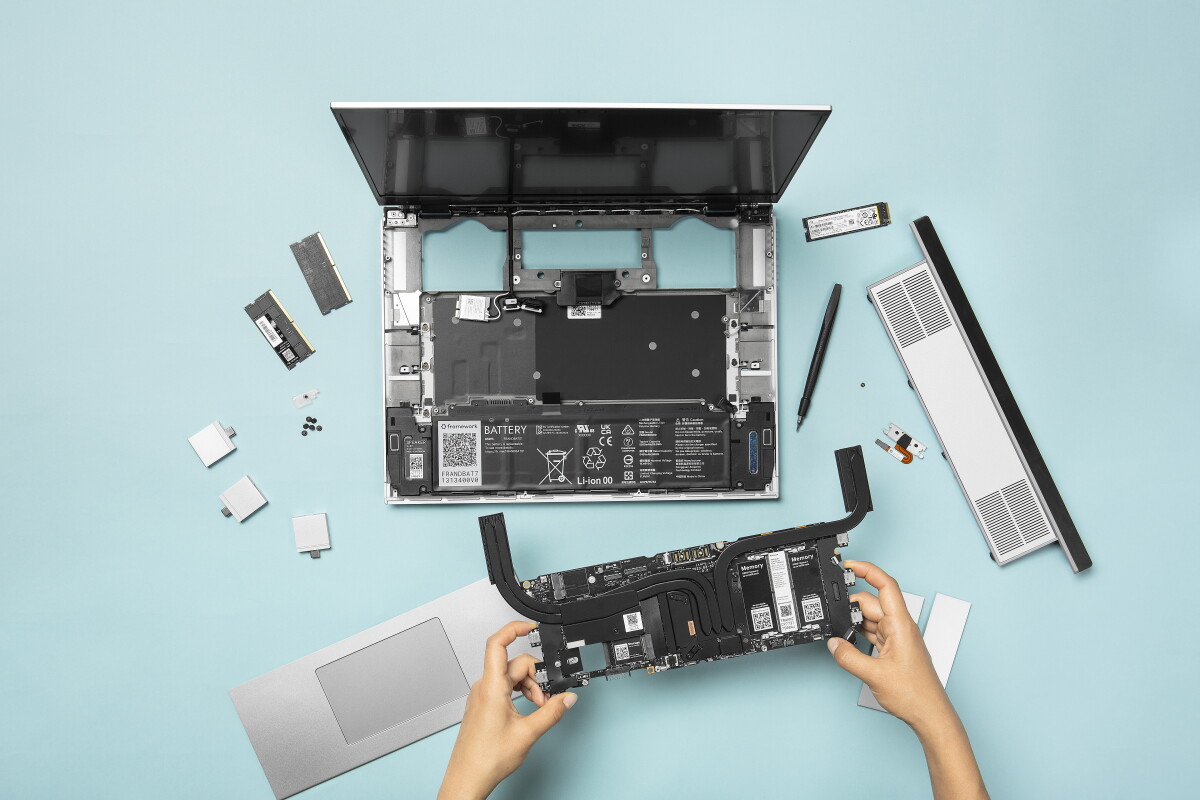
Upgrading a laptop can be a smarter spend than buying a new one, but only if the upgrade is compatible and the performance gains match your use. This curated list focuses on upgrades that commonly deliver noticeable improvements—especially for everyday tasks—while staying realistic about limitations like soldered components, warranty concerns, and power/thermal constraints.
Selection criteria (how these 10 were chosen): expected real-world impact, likelihood of compatibility across common laptop designs, safety/warranty considerations, ease of installation (DIY vs. service), and the “cost-to-benefit” trade-off for typical users (students, office workers, creators, travelers).
| Upgrade | Main benefit | Most suitable for | Key check before buying |
|---|---|---|---|
| 1) SSD upgrade | Faster boot/app load | Most users | Form factor + interface (M.2 SATA vs NVMe) |
| 2) RAM upgrade | Fewer slowdowns under load | Multitaskers, devs | Max supported RAM + DDR type/speed |
| 3) Battery replacement | Better runtime | Frequent mobile use | Correct model + health status |
| 4) Wi‑Fi module upgrade | Better connectivity | Remote work | Card type + antenna fit |
| 5) Thermal paste/repaste | Stability under sustained load | Heat-prone laptops | Serviceability + warranty terms |
| 6) Cooling pad / airflow management | Lower temps while docked | Desk use, gaming | Compatibility with vents |
| 7) External storage (USB/NVMe enclosure) | Capacity without opening the laptop | Anyone with limited internal bays | Port speed + enclosure support |
| 8) Display upgrade (when supported) | Better readability/color | Design, spreadsheets | Exact panel compatibility |
| 9) Docking station + port expansion | Convenience and peripherals | Desk setups | |
| 10) Power adapter upgrade / correct charging | Consistent performance on the go | Travelers, high-load users | Wattage + connector type |
1) Upgrade to a faster SSD (NVMe or higher-capacity)
An SSD upgrade replaces a slower drive (often SATA SSD or HDD) with a faster solid-state drive, typically via an M.2 slot. This upgrade belongs near the top because it most consistently improves day-to-day responsiveness: boot time, app launches, and file operations feel quicker even on older CPUs.
It’s best suited for laptops that feel sluggish, have long boot times, or run out of storage and rely on external drives. It’s also a strong “keep the laptop longer” move when the CPU is still adequate.
Main limitation/trade-off: some laptops have soldered storage or only one slot, and some models support only specific SSD types. Higher-capacity drives cost more, and performance gains depend on whether the laptop’s controller supports NVMe speeds.
Check before choosing: your laptop’s supported form factor (e.g., M.2 2280), interface (NVMe vs SATA), and whether there’s a second bay. If you’re unsure, verify with the laptop’s service manual or manufacturer specs.
Deep-dive: How to choose an SSD for your laptop (NVMe vs SATA, form factors, and compatibility).
2) Add or upgrade RAM (within the laptop’s supported limits)
RAM upgrades increase the amount of memory available for multitasking and memory-hungry workloads. This upgrade is worth paying for when your laptop frequently swaps to disk (a sign of insufficient RAM) or when you run multiple browser tabs, office apps, virtual machines, or development tools.
It’s best suited for users who see slowdowns after opening many apps, experience stutters during video calls, or work with large documents and datasets. For many laptops, RAM is one of the most cost-effective ways to improve “smoothness,” even if raw CPU speed doesn’t change.
Main limitation/trade-off: some laptops have soldered RAM, and others cap at a specific maximum. Also, RAM speed and configuration (single vs dual channel) can affect performance.
Check before choosing: the exact DDR generation (DDR4 vs DDR5), supported speeds, maximum capacity, and whether the laptop benefits from matched modules. If you’re paying for installation, confirm the service center will use compatible parts and won’t void warranty.
Deep-dive: RAM upgrade checklist: capacity, DDR type, speed, and dual-channel considerations.
3) Replace an aging battery to restore real runtime
Battery replacement can be one of the most noticeable upgrades for mobile users. When a battery ages, runtime drops and the laptop may throttle or shut down unexpectedly under load. A fresh battery often restores the “expected” experience—especially for travel, classes, and remote work.
It’s best suited for laptops that are still fast enough but can’t hold charge, or for users who frequently run on battery and want predictable performance. If your laptop’s battery health is significantly degraded, replacing it can be more cost-effective than other upgrades.
Main limitation/trade-off: battery replacement may be difficult on thin models, and some batteries are integrated or require careful calibration. There’s also the risk of counterfeit or incorrect-capacity replacements if you don’t buy from a reputable source.
Check before choosing: confirm battery model/part number, verify whether the laptop supports user-serviceable replacement, and review warranty terms. If possible, check battery health metrics in your OS before spending.
4) Upgrade the Wi‑Fi card for more reliable connectivity
A Wi‑Fi module upgrade can improve connection stability and throughput, particularly on laptops that ship with older wireless cards. This is most relevant when you regularly work from home/office, attend video calls, or use Wi‑Fi in crowded environments where signal quality matters.
It’s best suited for users who experience frequent disconnects, slow transfers over Wi‑Fi, or want support for newer Wi‑Fi standards. It can also help travelers who rely on hotel or airport networks.
Main limitation/trade-off: not all laptops support Wi‑Fi card swaps, and some require specific antenna configurations and card form factors. Incompatible cards can lead to poor performance or no connectivity.
Check before choosing: your laptop’s internal card type (often M.2), supported standards, and whether antennas are correctly connected. If you’re using a service shop, ask them to confirm compatibility with your exact model.
Deep-dive: Wi‑Fi upgrade compatibility: card types, antenna connections, and what to verify.
5) Repaste the CPU/GPU (thermal paste service) for sustained performance
Thermal paste replacement addresses a common cause of performance drops over time: higher operating temperatures leading to throttling. If your laptop runs hot, gets loud under load, or slows down during long tasks, repasting can restore more stable performance.
It’s best suited for laptops used for sustained workloads (video editing, coding sessions, long meetings with screen sharing) or for models known to accumulate dust and heat over time.
Main limitation/trade-off: many modern laptops are difficult to open, and some have warranty restrictions. Incorrect application can worsen thermals, and repasting won’t fix issues caused by failing fans, clogged heatsinks, or damaged thermal pads.
Check before choosing: whether your model is serviceable, whether fans/heatsinks also need cleaning, and whether your warranty allows it. If you pay a shop, ask what they’ll inspect besides paste.
6) Improve cooling with a cooling pad or better airflow management
Cooling pads and airflow management are practical upgrades when you can’t (or don’t want to) open the laptop. They can reduce surface temperatures and help maintain performance during longer sessions, especially on desks where vents are partially blocked.
It’s best suited for users who work at a desk, game occasionally, or notice throttling when the laptop is on soft surfaces. For travel, a lightweight pad can be a low-risk way to improve thermal behavior.
Main limitation/trade-off: cooling pads don’t replace internal thermal maintenance. If the heatsink is clogged or the fan is failing, external cooling may only provide modest benefit. Also, some pads can be noisy or add bulk.
Check before choosing: ensure the pad doesn’t block your laptop’s intake/exhaust vents, verify fan size/airflow design, and consider noise. If you use it on soft surfaces, confirm the laptop still has clearance.
7) Add external high-speed storage (USB SSD or NVMe enclosure)
External storage is an upgrade that avoids internal compatibility issues. A USB SSD or an NVMe drive in a compatible enclosure can add capacity for media libraries, backups, and large projects without opening the laptop.
It’s best suited for laptops with limited internal bays, users who frequently move files between devices, and anyone who wants a straightforward capacity boost. It’s also useful as a backup target when internal storage is nearly full.
Main limitation/trade-off: external drives are slower than internal NVMe for some workloads, and performance depends on your laptop’s USB port type and the enclosure’s controller. Also, external drives add another device to manage and protect.
Check before choosing: confirm your laptop’s USB capabilities (e.g., USB 3.x vs USB4/Thunderbolt), verify enclosure support for the drive size, and ensure you have a backup plan (external storage is not a substitute for backups).
Deep-dive: External SSD vs internal SSD: when enclosures make sense and how to avoid bottlenecks.
8) Display upgrade (only when your laptop supports it)
A better display can be a meaningful upgrade for readability, color accuracy, and eye comfort. However, display swaps are highly model-specific. If your laptop supports a compatible panel replacement (same connector type, resolution, and mounting), you may improve brightness, contrast, or color characteristics.
It’s best suited for users who spend many hours on spreadsheets, writing, or design work, and who can confirm the exact panel compatibility. It can also help if your current screen has defects like flicker or dead pixels.
Main limitation/trade-off: compatibility risk is high. Even when the physical size matches, different panel revisions and cable/connector types can prevent installation or cause issues like incorrect brightness control.
Check before choosing: verify the exact panel part number and interface requirements for your specific laptop model and revision. If you’re not comfortable with panel swaps, use a qualified service center.
9) Add a docking station to expand ports and simplify daily use
A docking station is an “upgrade” that improves workflow rather than raw performance. It can provide more USB ports, Ethernet, and external display connections, reducing the need to plug/unplug cables. For many office and hybrid workers, this is the upgrade that makes the laptop feel more like a desktop workstation.
It’s best suited for desk-based users with monitors, printers/scanners, and stable internet. It’s also helpful for travelers who want a consistent setup at home or in a coworking space.
Main limitation/trade-off: docking performance depends on your laptop’s port capabilities and supported display standards. Some docks require specific laptop ports (USB-C with DisplayPort Alt Mode, Thunderbolt, etc.), and not all docks support the same number of external displays.
Check before choosing: confirm your laptop’s docking/display support, the dock’s power delivery wattage, and whether you need Ethernet or specific USB speeds. Verify monitor resolution/refresh rate expectations for your setup.
Deep-dive: How to choose a laptop dock: ports, power delivery, and multi-monitor compatibility.
10) Ensure you have the correct power adapter (and enough wattage)
Using the wrong charger—or one with insufficient wattage—can limit performance, cause slow charging, or lead to battery drain during heavy use. For laptops that support higher power charging, matching the adapter to your model can be a practical upgrade for travelers and anyone who runs demanding tasks on battery.
It’s best suited for users who notice the laptop charging slowly, losing charge during video calls, or throttling when plugged in with a lower-wattage adapter. It’s also relevant if you’ve replaced a charger and aren’t sure it matches the original.
Main limitation/trade-off: not every laptop benefits from a higher-wattage adapter, and some models manage power intelligently. Also, using non-OEM or incompatible connectors can be risky.
Check before choosing: confirm the connector type, required wattage range, and whether the laptop supports charging over that port. If you’re replacing a charger, verify it matches the laptop’s documented requirements.
Practical selection framework: which upgrade fits your situation?
Use this quick decision guide to choose the most cost-effective upgrade for your needs:
- My laptop feels slow or boots slowly: prioritize SSD upgrade, then consider RAM upgrade if multitasking is the bottleneck.
- I run out of battery quickly: start with battery replacement, then verify you’re using the correct power adapter for your travel/work pattern.
- Wi‑Fi is unreliable: consider a Wi‑Fi module upgrade only after confirming card compatibility and antenna fit.
- Performance drops after a while / laptop gets hot: consider thermal paste service (and cleaning) before relying on external cooling.
- I need more storage but don’t want to open the laptop: choose external high-speed storage via USB SSD/enclosure.
- I want a better desk setup: use a docking station to expand ports and reduce cable friction.
- I care about screen quality: only pursue a display upgrade if you can confirm exact panel compatibility for your model revision.
If you want the safest path, start by checking what’s actually upgradeable on your specific laptop (service manual, internal slot availability, and warranty terms). Then match the upgrade to your dominant pain point—speed, memory, runtime, connectivity, thermals, storage, or workflow.